The fan spins up. You know why before you look for it.
- once, in Settings
Switch it on
It’s off until you turn on System in Settings › The notch.
- your Mac gets busy
Open the Dashboard
The rings turn amber, then red, as your Mac works harder.
- you want a name
See who’s busy
The three busiest apps, with the rest on one line, so it adds up to the CPU ring.
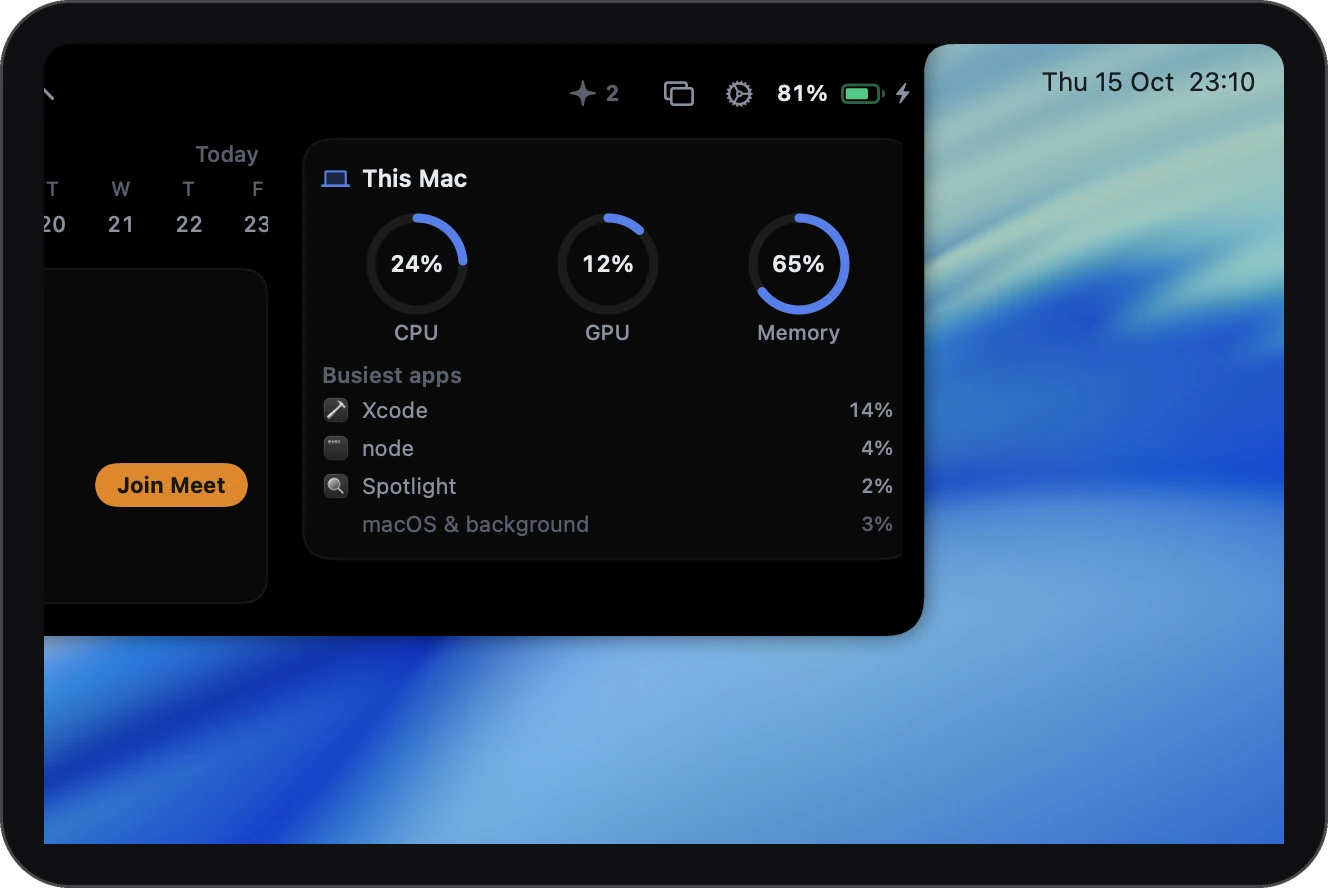
Blue is fine. Amber is busy. Red is near the limit.
Apps, not processes: helpers and extensions count under the app they belong to. Point at the memory ring to read, say, 6.2 of 16 GB in use.
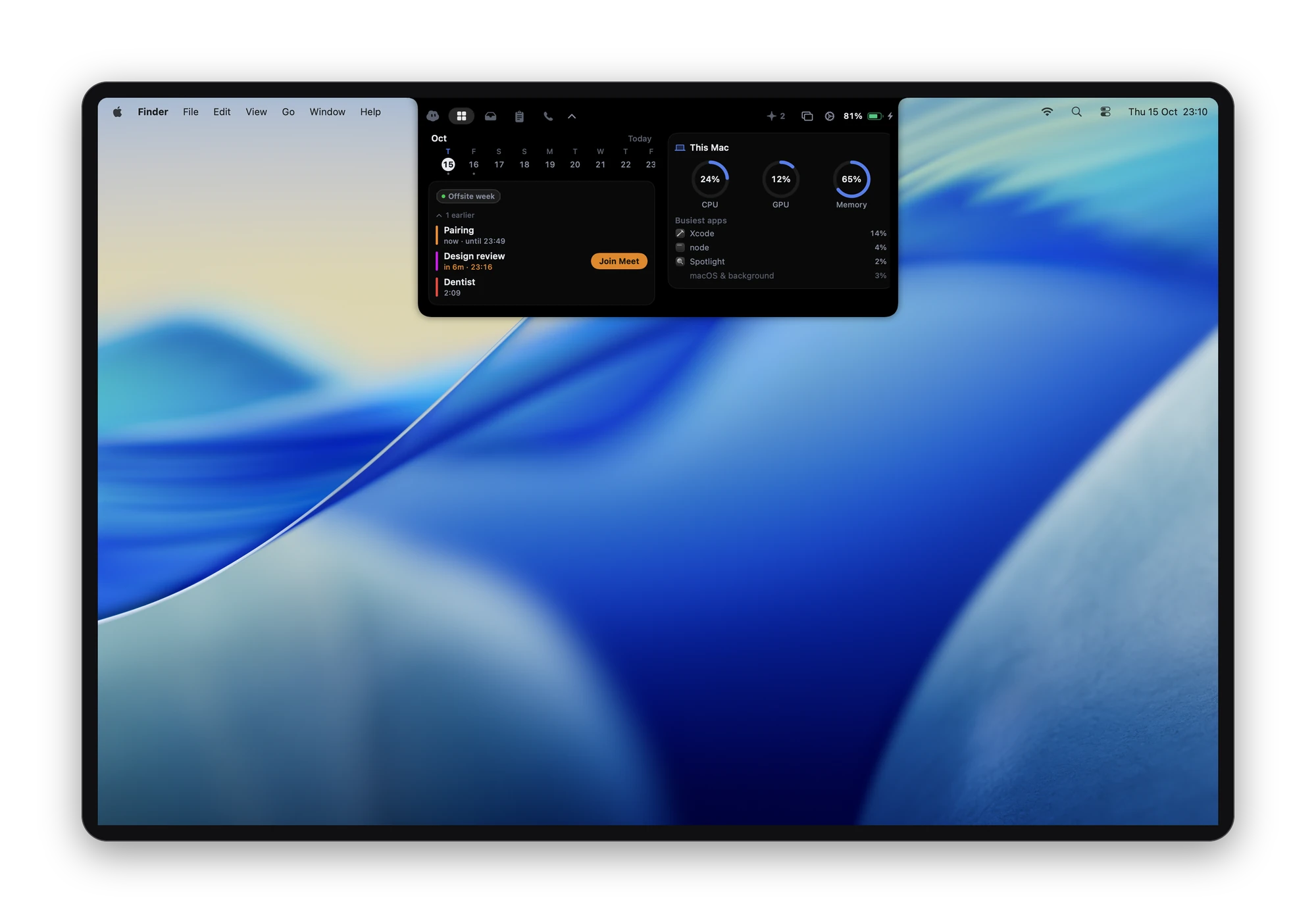
Right next to your day
This Mac sits on the Dashboard tab beside today’s meetings. Open the notch and it’s there.
Light on your Mac: figures are read every 3 seconds while the notch is open and every 6 when it’s shut. The app list only updates while you’re looking.
Your battery, beside the camera
The closed notch can show your battery, so you see it without opening anything.
It turns amber
The battery turns amber when it’s low. When it’s nearly empty and unplugged, it shows the time left in red.
It says so
If your Mac is plugged in but holding its charge to protect the battery, Airlock says so.
Hide it
Turn off Battery percentage in Settings › The notch, under Beside the camera.
Settings and plan
It starts out like this. Everything is in Settings › The notch.
System
CPU, GPU and memory on the Dashboard.
Battery
The battery card, and the percentage beside the camera in the closed notch.
Every plan, Free included
All of This Mac is in Free, with no card and no account.
Nothing
It reads the figures macOS already gives every app.
Questions
Does it show temperature or fan speed?
No. It shows CPU, GPU and memory, and the battery beside the camera.
Why don’t I see a GPU ring?
Some Macs don’t report it. Where it’s missing, the ring is left out.
Does it slow my Mac down?
It reads a handful of figures every few seconds, and the list of apps only while the notch is open.
Can I hide the battery beside the camera?
Yes. Turn off Battery percentage in Settings › The notch, under Beside the camera.
More of the notch
Your next meeting, one click to join.
The notes are written when the call ends.
Hold ⌃, talk, and it’s typed.
Claude Code’s questions, answered from the notch.
Everything you copied, one search away.
Your music, right where you look.
Park a file mid-drag.
No sleep while you need it.